How to Check How Much Data You Have Left on UK Networks
Checking your remaining data is quickest in your phone settings and most accurate in your network app. iPhone and Android show total usage and app breakdowns, while EE, Vodafone, O2, and Three show how much is actually left in your allowance.

If you want to know how to check how much data you have left, the quickest answer is this: your phone settings show how much data you have used, and your network app shows how much is actually left in your allowance. On iPhone, open Settings and tap Mobile Data. On Android, open Settings and find Network & Internet or Connections. Both show your current data usage and a list of apps using the most data. If you are on a UK network, your carrier's app gives a more accurate picture because it tracks against your actual monthly allowance rather than your phone's reset cycle.
This guide covers all three angles:
- ✓ The device-level checks on iPhone and Android
- ✓ The carrier-specific methods for EE, Vodafone, O2, and Three
- ✓ What changes when you are travelling from the UK
For UK travellers heading overseas, knowing how to track data correctly is the difference between staying connected and a surprise roaming bill.
For trips outside the UK, an eSIM for international travel activated before departure replaces your home carrier data allowance entirely while keeping your UK SIM available for calls and texts. More on that toward the end.
Where to Find Data Usage on Any Phone
The fastest way to see how much data you have used is through your phone settings, regardless of carrier. A single check takes about thirty seconds. The exact menu name varies by device and region, but the path is consistent.
-
✓
Quick Path on iPhone
Settings → Mobile Data → scroll to see Current Period usage. -
✓
Quick Path on Android
Settings → Network and Internet → SIMs → total data usage at the top, then App data usage for a breakdown. -
✓
Samsung Galaxy
Settings → Connections → Data usage → Mobile data usage.
How to See Data Usage on iPhone: The Full Method
How to see data usage on iPhone is one of the most searched mobile questions in the UK. The answer is the same across every model from the iPhone 11 to the iPhone 16 and beyond.
-
✓
Step-by-Step on iPhone
Settings → Mobile Data → look at the Current Period section at the top of the screen.This is your total data usage since the statistics were last reset.
The Current Period does not automatically reset each month. iPhone tracks from whenever you last manually reset it. To align with your actual billing cycle, scroll to the bottom of the Mobile Data screen and tap Reset Statistics on the first day of each billing month.
Below the total, you will see a list of apps with their individual data usage. This is one of the most useful screens on the phone if you suspect a single app, like YouTube, Instagram, or a streaming service, is burning through your allowance.
-
✓
How Can You Check Data Usage on iPhone for Specific Apps?
The app list under Mobile Data shows exactly how you can check data usage on iPhone at the app level. Each app displays its usage since the last reset, ranked highest first. Tap the toggle next to any app to stop it from using mobile data entirely — the fastest way to cut consumption if a single app is the culprit.
-
✓
How to Check Data Usage on iPhone System Services
To see data used by background system processes such as push notifications, software updates, and location services, scroll to the bottom of the app list and tap System Services. Useful for diagnosing unexplained data consumption that does not appear under any specific app.
-
✓
Turning on Low Data Mode
If you are close to your allowance or want to stretch what you have left, Low Data Mode reduces background activity and pauses automatic updates.
Settings → Mobile Data → Mobile Data Options → Low Data Mode → toggle on.Available on iOS 13 and later. Particularly useful when roaming or when waiting for a billing cycle to reset.
How to Check Data Usage in Android: The Full Method
How to check data usage in Android varies slightly by manufacturer because each maker customises the settings menu. The two most common variations cover the majority of UK Android users.
-
✓
Stock Android and Google Pixel
Settings → Network and Internet → SIMs → tap your active SIM.The total data usage appears at the top of the screen. Tap App data usage to see a graph and a list of apps ranked by consumption.
-
✓
Samsung Galaxy (One UI)
Settings → Connections → Data usage → Mobile data usage.The screen shows your current billing cycle, total consumption, any data warning or limit you have set, and a list of apps with individual usage figures.
-
✓
Setting a Data Warning and Limit on Android
Under the Mobile data usage screen, tap the settings icon to set a Data warning (notification when you hit a chosen threshold) and Data limit (automatic cut-off when you reach your allowance). With these alerts on, you receive a notification before you exceed your allowance rather than after.
To align Android tracking with your billing cycle, set the billing cycle start date in the same menu. On Samsung devices, this is under Billing cycle and data warning. On Pixel and stock Android, it is under the SIM settings or App data usage section.
-
✓
Turning on Data Saver
Android's equivalent of Low Data Mode is Data Saver.
Settings → Network and Internet → Data Saver → toggle on.Available on Android 7.0 and later. Particularly useful when roaming or travelling on limited prepaid data.
How Do You Check How Much Data You Have Left on UK Networks?
Your phone settings show how much data you have used since the last reset. Your network's app shows how much data you have left against your actual allowance. For UK travellers, the second number is the one that matters.
-
✓
EE
The My EE app is the easiest method. Open it and the home screen shows your remaining data allowance and days left in your billing cycle. Web access via My Account at ee.co.uk.
-
✓
Vodafone
Open the My Vodafone app for a full breakdown of remaining data, calls, and texts. For a quick check without opening the app, dial *#100# from your handset — a balance summary appears within seconds. Web access at vodafone.co.uk.
-
✓
O2
The My O2 app shows your remaining allowance on the home screen. Quick alternatives: dial *#10# from your O2 handset, or text BAL to 20202 and O2 will reply with your current balance. Web access at o2.co.uk.
-
✓
Three (now VodafoneThree)
Three merged with Vodafone in May 2025 to form VodafoneThree, but the My3 app remains the customer app for existing Three customers. The home screen shows remaining data and the bill cycle. The USSD shortcut *#100# also works on Three handsets. Web access at three.co.uk.
Also Read
Why is my cellular data not working?
Lost mobile data when you need it most? Learn the common reasons cellular data stops working and simple fixes to get back online quickly.
How much mobile data do you really need for travel?
Not sure how much data to buy? Understand how much mobile data you need for maps, messaging, social media, and streaming while traveling.
How much data does streaming use?
Streaming can drain data fast. Learn how much data Netflix, YouTube, Spotify, and video calls use so you can manage your plan smarter.
MVNO Customers — Tesco Mobile, Giffgaff, Sky Mobile, Smarty, Lebara, BT Mobile, and Others
If you are with a mobile virtual network operator rather than one of the four big networks, your data tracking happens through your specific provider's app or web portal. Most MVNOs piggyback on EE, O2, Vodafone, or VodafoneThree infrastructure but bill separately — which means USSD codes from the major networks will not return your balance. Use the My Tesco Mobile, Giffgaff, Sky Mobile, Smarty, or equivalent app for your provider.
Travelling Abroad: Tracking Data on an eSIM
Once you cross the UK border, two things change. Your domestic network either charges roaming fees or stops working entirely. And the data tracking you see in your phone settings may no longer reflect what is actually being used or charged.
-
✓
How to Prevent Roaming on iPhone
Before any international trip, this is a one-minute settings change worth doing:
Settings → Mobile Data → Mobile Data Options → Data Roaming → toggle off.This stops your UK SIM from automatically connecting to a foreign network and clocking up roaming fees on iPhone while you sleep.
If you are travelling on a travel eSIM, keep roaming on for the eSIM line and off for your UK SIM. Both can be configured separately under Settings → Mobile Data → SIMs. -
✓
How to Track an International eSIM
An international eSIM is a second mobile line on your phone, separate from your UK SIM. To track its data usage on iPhone:
Settings → Mobile Data → tap your eSIM line → look at Current Period for that line specifically.On Android, the path varies but the principle is the same — each SIM has its own usage tracking accessible through SIM settings.
Most travel eSIM providers offer an app or web dashboard showing your remaining allowance as your provider counts it, including any add-ons or top-ups made mid-trip. This is more reliable than phone-level tracking. -
✓
At-a-Glance Tracking with Home Screen Widgets
For tracking without opening settings, add a widget to your home screen. Some eSIM providers including Airalo and Holafly offer iOS widgets that display remaining data on the home or lock screen.
On Android, third-party apps such as My Data Manager provide similar widgets across both mobile and Wi-Fi data tracking.
Staying Connected with an eSIM for International Travel
For trips outside the UK, your domestic data allowance often becomes the least reliable way to stay connected. Roaming fees can build quickly, and phone-level tracking does not always match what your carrier is charging. That is where an eSIM for international travel makes things much easier.
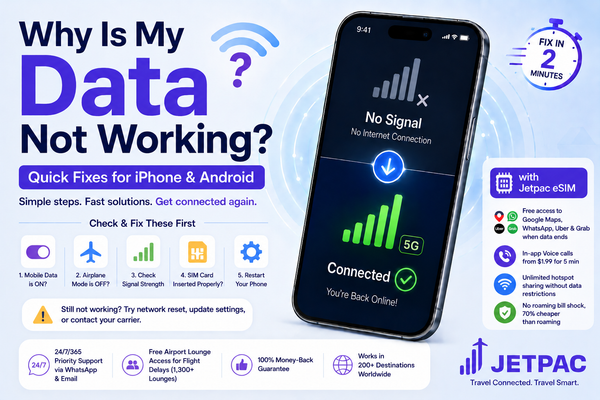
A Jetpac international eSIM works alongside your UK SIM on the same phone. Your UK number stays available for calls and texts, while the eSIM handles data abroad at prepaid rates. You install it before departure through a QR code, and your data is ready as soon as you land.
Why Jetpac works well for travel data:
-
✓
Free access to essential apps even after data runs out
WhatsApp, Google Maps, Uber, and Grab stay active even after your main data allowance is used. That means you can still navigate, message, and get around even if your main travel data pack is finished.
-
✓
In-app voice calling in 50+ countries
Call landlines and non-WhatsApp numbers directly through the Jetpac app. Useful for hotels, drivers, local operators, and support lines. Call packs start at USD 1.99 for 5 minutes.
-
✓
Hotspot sharing without data restriction
Use one plan across multiple devices without extra sharing charges, whether that is your phone, laptop, tablet, or another traveller’s device.
-
✓
No roaming bill shock
Jetpac uses transparent prepaid pricing with no hidden fees and can save up to 70% compared with international roaming charges.
-
✓
One eSIM, 200+ destinations
One setup works across more than 200 destinations, so if your trip covers multiple countries, you do not need to keep changing SIMs.
-
✓
Multiple-network support
Jetpac automatically connects to the strongest available local network in each country, helping your signal stay stable as you move.
-
✓
Fast and reliable 4G/5G access
Where available, Jetpac connects to 5G, with fallback to strong 4G networks for dependable travel use.
-
✓
100% money-back guarantee
A hassle-free refund adds peace of mind if plans change before departure.
-
✓
Free airport lounge access for flight delays
If your flight is delayed by more than 1 hour, Jetpac includes access to 1,300+ airport lounges worldwide. You need to register yourself and one travel companion at least 24 hours before departure.
-
✓
24/7/365 priority support
Help is available through WhatsApp and email at any hour, wherever your trip takes you.
For anyone comparing the best esim for international travel , the most useful setup is the one that keeps tracking simple, shows your remaining allowance clearly, and keeps the apps you actually need working even when your main data runs out.

FAQs
How to check how much data you have left on your iPhone?
Open Settings → tap Mobile Data → see the Current Period total at the top of the screen. To track against your actual billing cycle, tap Reset Statistics at the bottom of the screen on the first day of each month. For your remaining allowance, open the My EE, My Vodafone, My O2, or My3 app, depending on your UK network.
How to check how much data you have left on Android?
Open Settings → Network & Internet → SIMs → tap your active SIM for the total. On Samsung Galaxy, go to Settings → Connections → Data usage → Mobile data usage. Both methods also show a per-app breakdown of which apps are using the most data.
How do you check how much data you have left on EE, Vodafone, O2, or Three?
The fastest method is your network's official app: My EE, My Vodafone, My O2, or My3. For a quick balance check without opening the app, dial *#100# on EE, Vodafone, or Three, or *#10# on O2. O2 users can also text BAL to 20202.
How can you check data usage on iPhone at the app level?
Settings → Mobile Data → scroll down past the total. The list shows every app that has used mobile data, ranked highest first, with the exact amount each has consumed. Tap the toggle next to any app to disable its mobile data access entirely.
How to check data usage in Android for individual apps?
After opening Settings → Network & Internet → SIMs → tap App data usage. The screen shows every app's mobile data consumption, sorted by amount used. On the Samsung Galaxy, the same breakdown is under Connections → Data usage → Mobile data usage.
How to check how much data you have left when travelling abroad?
For phone-level tracking, check your eSIM line specifically under Settings → Mobile Data on iPhone, or under SIM settings on Android. For an accurate remaining allowance, use your travel eSIM provider's app or dashboard. Most international eSIMs, including Jetpac, show real-time remaining data inside the app.
Disclaimer
This blog is for informational and educational purposes only. Menu paths and settings names are based on iOS and Android versions current as of May 2026 and may vary by device model, operating system version, and carrier. UK network methods, including My EE, My Vodafone, My O2, and My3 app features and USSD code functionality, are based on publicly available information at the time of writing and are subject to change; always verify with your network operator. Vodafone Three merger details are based on publicly announced corporate information from May 2025. MVNO customer methods vary by provider; consult your specific provider's app or website. Roaming charges, data allowances, and eSIM tracking features vary by provider; verify current terms with your network before travel. Third-party widget apps mentioned, including My Data Manager, are not endorsed by Jetpac; verify each app's terms before installation. Jetpac is not responsible for network variations, third-party data accuracy, or decisions made based on this content. No endorsement of any network, device manufacturer, or third-party service is implied.
Get connected as soon as you land with a Jetpac travel eSIM.